
Your icons. One tidy drawer.
Bring hidden menu items together and find them by name.
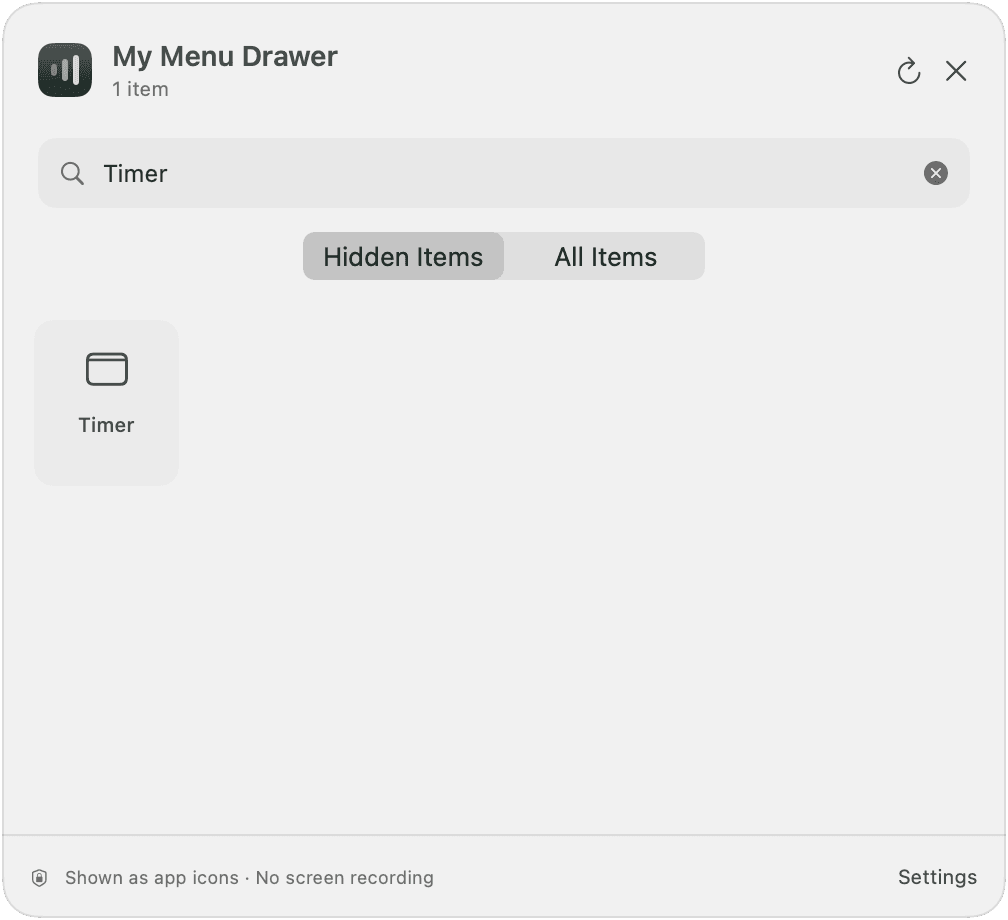 App screenshot · English interface
Make room in your Mac’s menu bar. Keep what you need close, and tuck the rest away.
macOS 14–26 Apple Silicon
Interactive illustration of FancyBar’s features.
LESS CLUTTER. MORE FOCUS.
Small, thoughtful tools that fit right into the way you use your Mac.
Bring hidden menu items together and find them by name.
App screenshot · English interfaceChoose an auto-hide delay from 5 to 60 seconds. Set your own pace.
One click or one shortcut. Show your icons whenever you need them.
YOUR MAC. YOUR PRIVACY.
We don’t upload menu items or record your screen. Only the information needed to verify your purchase is checked online.
A LITTLE SETUP. A LOT OF SPACE.
Three small steps to a little more space.
Move FancyBar to Applications, then activate this Mac with the email account you used to purchase.
Hold ⌘ and drag the icons you want to hide to the left of the divider.
Click the menu bar button to tuck things away. Bring them back whenever you need them.
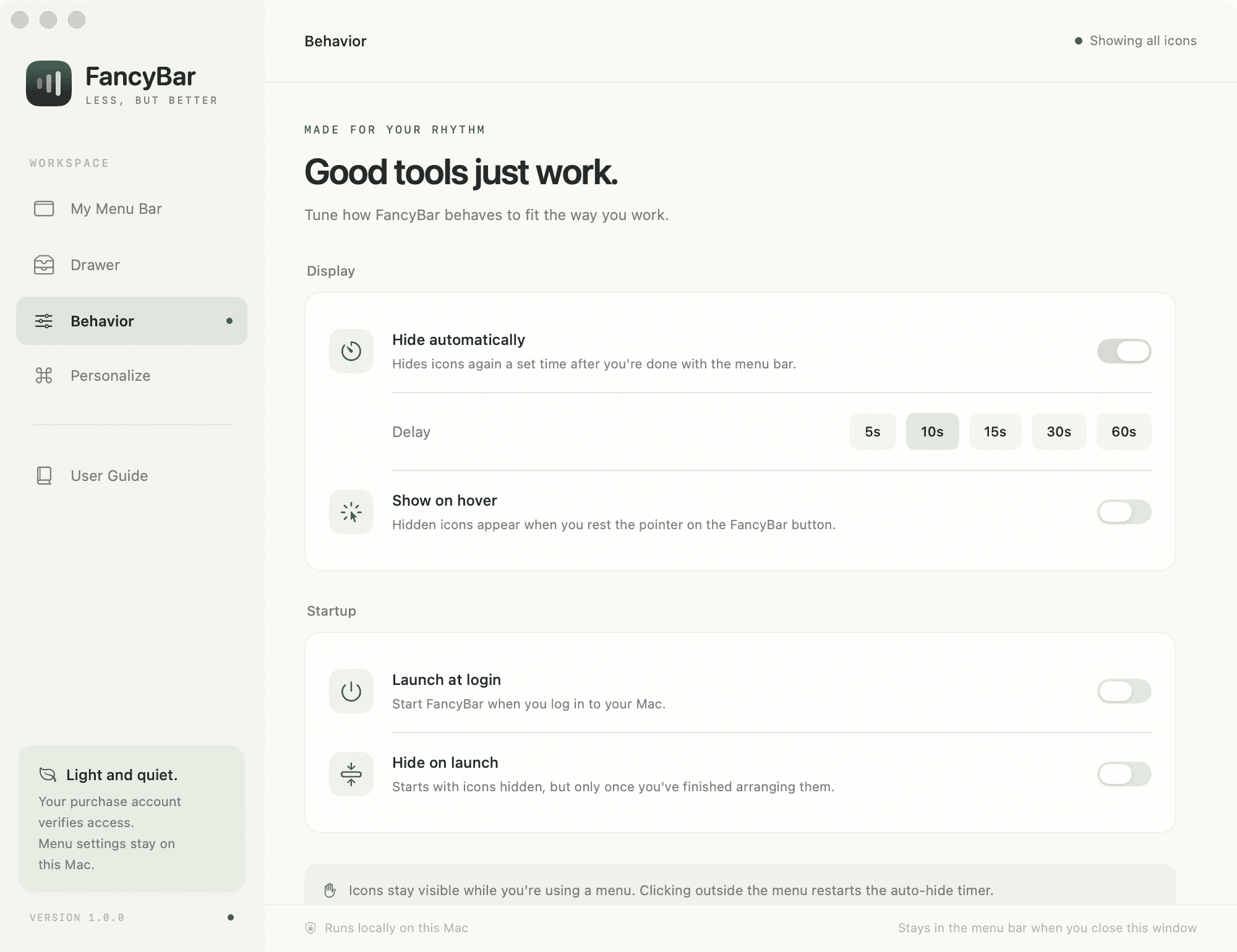 App screenshot · English interface
GOOD TO KNOW
A few things before you get started.
Apple Silicon (M1 or later) on macOS 14–26. Intel builds are not available. Menu bar hiding is disabled on macOS 27 until compatibility is verified.
Basic hiding and showing need no additional permissions. The optional drawer uses Accessibility permission to read and open menu items. Screen Recording is not required.
The drawer shows app icons and accessibility names, not live battery or CPU indicators. Items without accessibility support or outside the visible layout may not open.
Once your payment is verified, download the DMG from your account and drag FancyBar into Applications. Sign in with your purchase account to download again. Activate each Mac online on first launch.
FancyBar connects online to verify purchases and licenses. Menu items, screen content and mouse positions are not uploaded. Settings stay on your Mac. Clerk handles sign-in and Paddle handles payments.

A QUIETER CORNER OF YOUR MAC
Give your menu bar a little breathing room.
Get FancyBar Secure Paddle checkout · Downloads for purchasers